Meetings without a bot
Meeting notes.
No bot in the call.
Captylo records the call on your Mac: your microphone and the computer’s audio, as two separate tracks. The transcript appears live, on the device. In Google Meet, Zoom, Teams and any other app.
Live transcript
OthersIn September we spent thirty-two thousand, more than half of it on search ads.
MeSo in October we move part of the budget to LinkedIn?
OthersI suggest a test on two audiences. Two weeks, five thousand at most.
MeFine. I will ask the agency for a video quote and send it tomorrow.
Recording and the live transcript are free and run on your Mac. The AI notes come with Captylo Pro, after the call.
A meeting in 15 seconds
When a call starts, Captylo records it on your Mac, with no bot in the meeting. The transcript is free; Captylo AI writes the summary and the tasks in Pro.
No bot joining the call
Nobody sees an extra participant or a request to let a notetaker in. Captylo listens to what your Mac hears: the microphone is your track, the computer’s audio is the others’ track.
- Works with any call app, in the browser too
- Two tracks: you know what you said and what the others said
- It can notice a call and ask whether to record. It never records without you saying so
- At the start it reminds you to tell the others and gives you a ready line for the chat
Two tracks, one transcript
It knows who the call is with
Connect the macOS calendar and Captylo names the recording after the event, keeps the participants and reminds you of the call. You record an upcoming meeting with one click.
- Google and Outlook through Internet Accounts in macOS
- A reminder at the start, or 1, 2 or 5 minutes before
- In the Free plan, off by default

In 1 min: “Sprint review” (Meet). Record notes?
RecordUpcoming
Record meeting- 17:45Sprint reviewRecord
- 19:20Client call: the quoteRecord
- 21:20Q4 planningRecord
After the call: the transcript and the notes
Every line has its moment in the recording: click a time stamp and Captylo plays the call from there. Pro adds a more accurate cloud transcript, AI fixes and notes with decisions and tasks.
- AI notes from a template: 1:1, standup, client call, interview, lecture and general
- Speaker labels: rename “Speaker 1” and the whole meeting follows (Pro, macOS 15+)
- Export to Markdown and an open JSON format
Q4 marketing budget
- [0:04]Me
Hi, let’s start with the budget for the fourth quarter. Anna, will you show us the numbers?
- [0:12]Anna
Sure. In September we spent thirty-two thousand, and more than half of it went to search ads. The LinkedIn campaign brought the most leads, but each one cost a lot.
- [1:35]Me
So in October we move part of the budget from search to LinkedIn?
- [1:45]
I suggest a test on two audiences first. Two weeks, five thousand at most.
- [1:58]Anna
Agreed. We compare the results on October fifteenth.
- [10:20]Speaker 1
I will prepare three versions of the graphics for the test by Wednesday.
- [22:13]Me
I will ask the agency for a video quote tomorrow and post it in the team channel.
Summary
- In September we spent 32,000 zł, more than half on search ads.[0:12]
- LinkedIn brings the most leads, but the cost per lead is high.[0:12]
Decisions
- A two-week LinkedIn test on two audiences, up to 5,000 zł.[1:45]
- We compare the test results on October 15.[1:58]
Tasks
- Speaker 1: three versions of the graphics for the test, by Wednesday.[10:20]
- Me: ask the agency for a video quote, tomorrow.[22:13]
Find any word from any call
Search goes through all your meetings at once and understands Polish word endings: “ofercie” finds “ofertę”, “budżecie” finds “budżet”. Click a result and Captylo opens the transcript right at that line. Try a word of your own.
- Runs on your Mac, offline and free
- Searches transcripts, titles and your notes
2 meetings
Q4 marketing budgetOct 2
22:13Me: I will ask the agency for a video quote tomorrow and post it in the team channel.
Client call: rolloutSep 30
10:11Others: Good. Send us a quote for the training and a test account for the team.
24:40Me: I will add the start date and a contact person to the quotation.
Captylo Pro
Ask about one meeting. Or all of them
Ask in plain words and Captylo answers from the transcript, pointing to the moments of the call the answer comes from. A question about all meetings sends only the matching excerpts to AI, never whole transcripts.
- When something was not said, the answer says so
- Questions about time work too: “what did we agree last week?”
- A citation opens the transcript at that line
Q4 marketing budget
How much can we spend on the LinkedIn test?
Up to 5,000 zł on a two-week test with two audiences 1:45. You compare the results on October 15 1:58.
This is how it looks in Captylo
Real screens of the app (in Polish), not mockups.
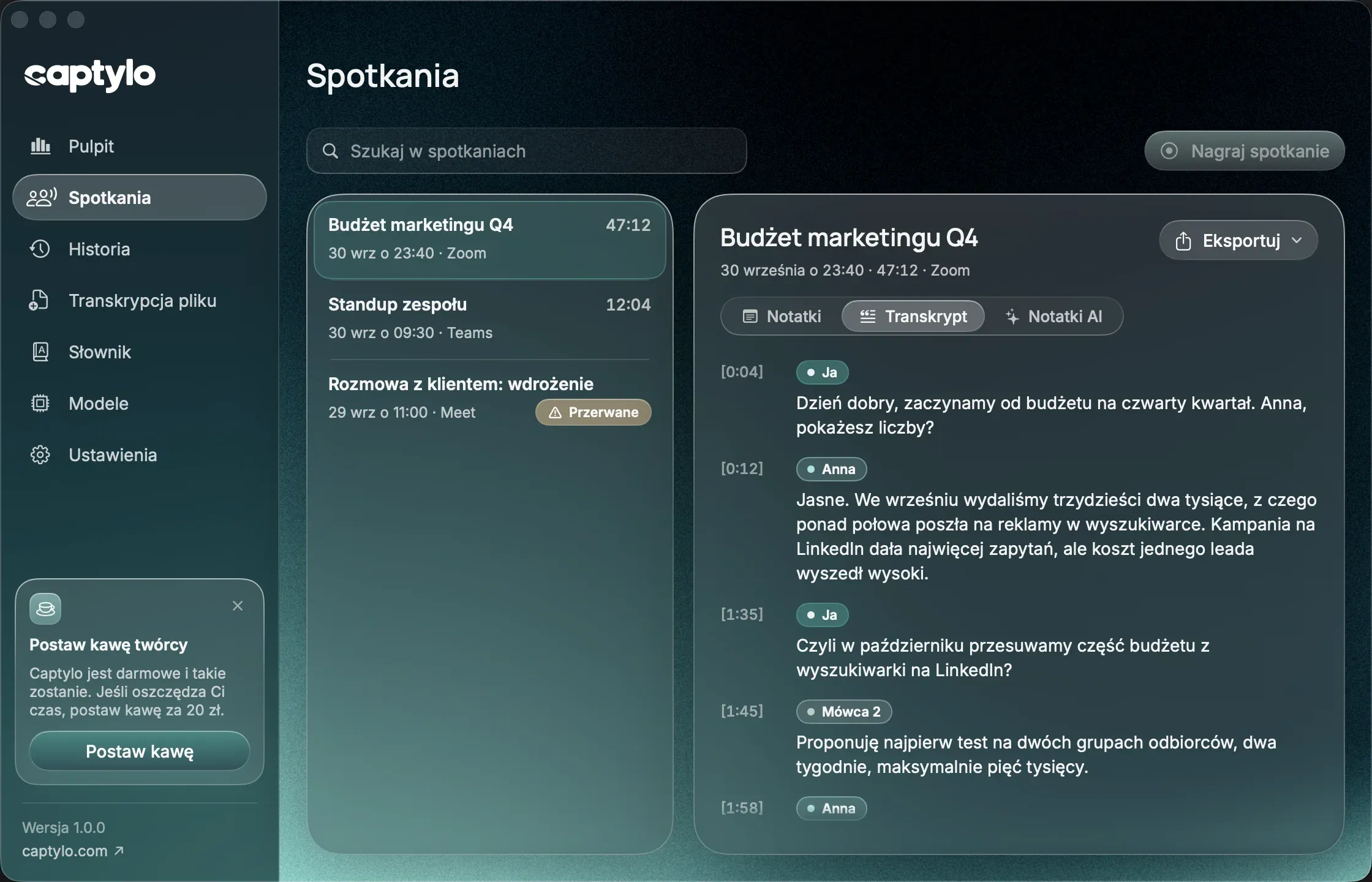
A labelled transcript
The meeting list on the left, the transcript on the right. Every line has a label and a time stamp that plays the recording from there.
AI notes
The summary, decisions and tasks, each with a time stamp. The template is picked from the meeting title, and you can change it.
Pro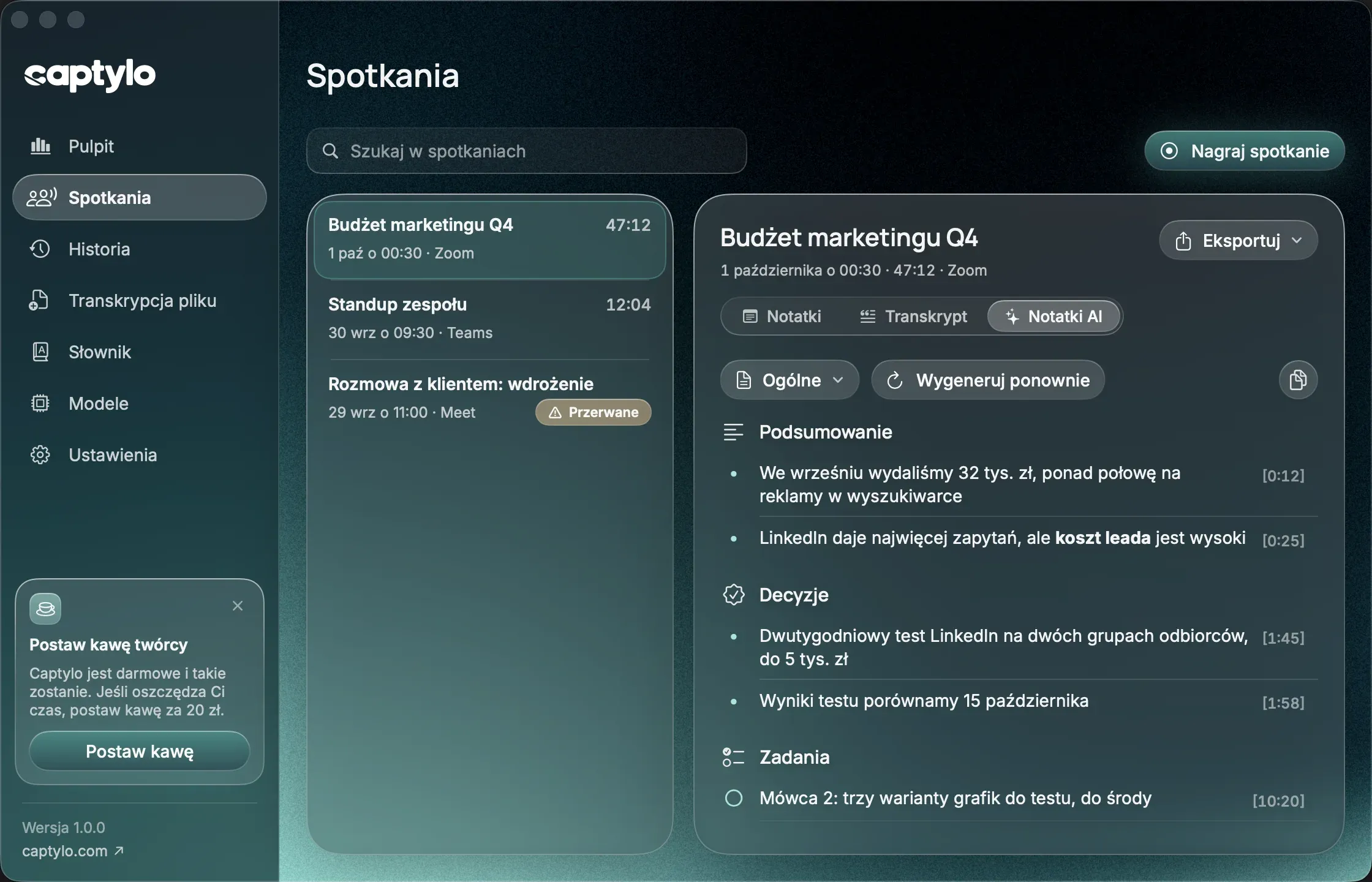
Search across meetings
Type a word and Captylo shows the meetings and lines where it came up, in any form. A click opens the transcript right there.
Free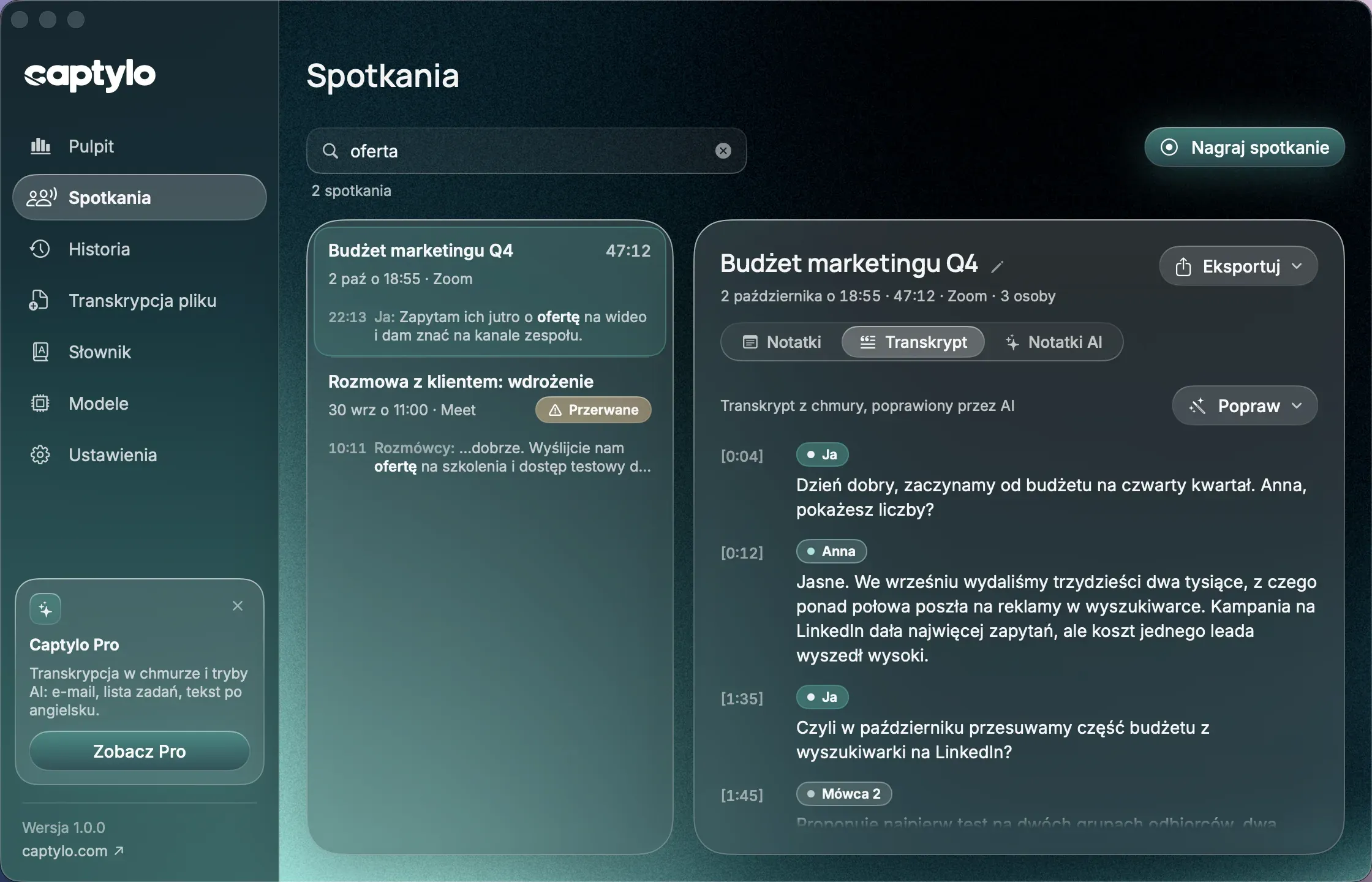
Ask about a meeting
Questions and answers stay with the meeting, with the moments of the call they come from.
Pro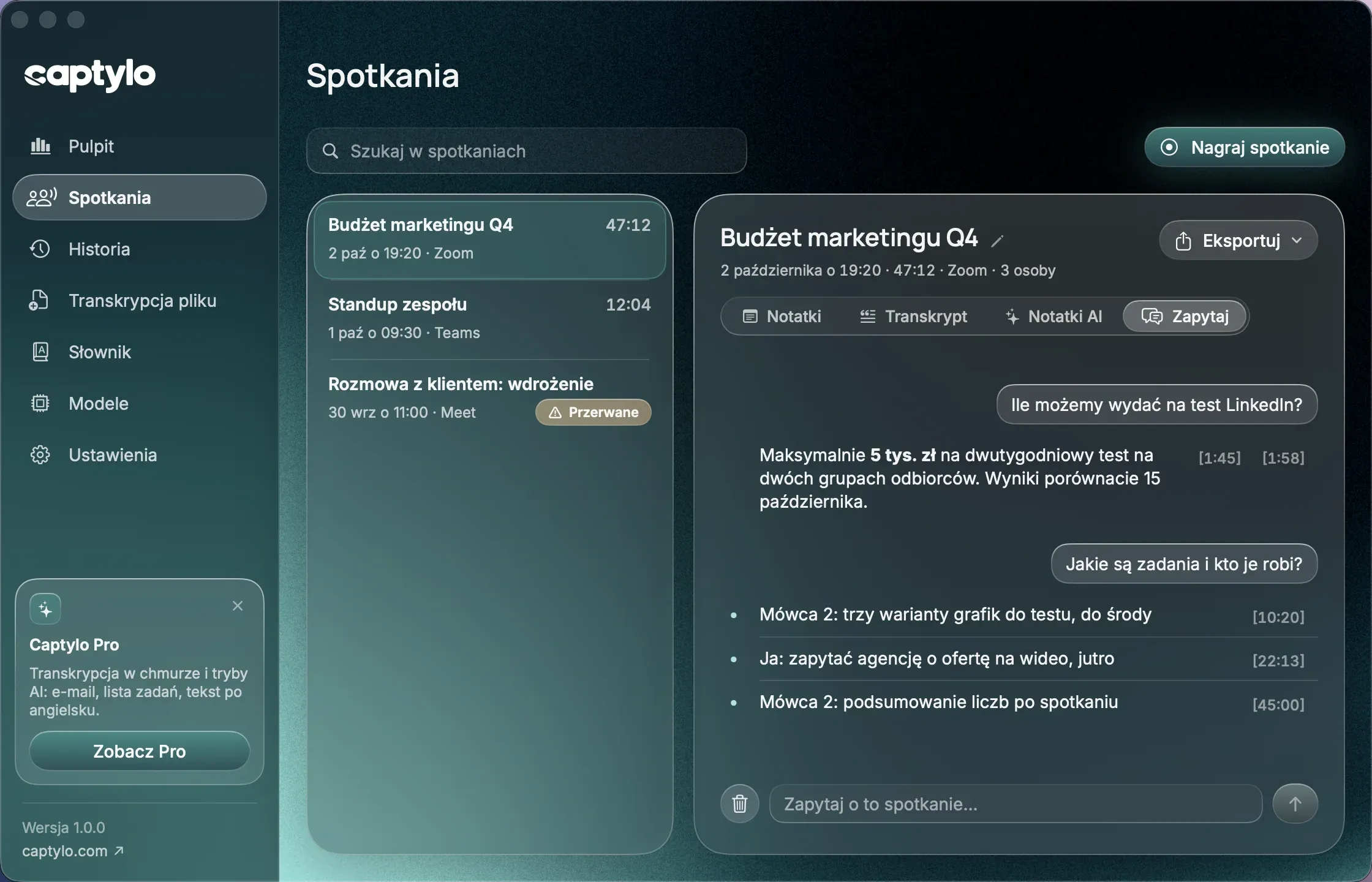
Upcoming meetings
With the calendar connected, the next three calls sit above the meeting list with the service and the number of people. The record button starts a recording with the title and the participants.
Free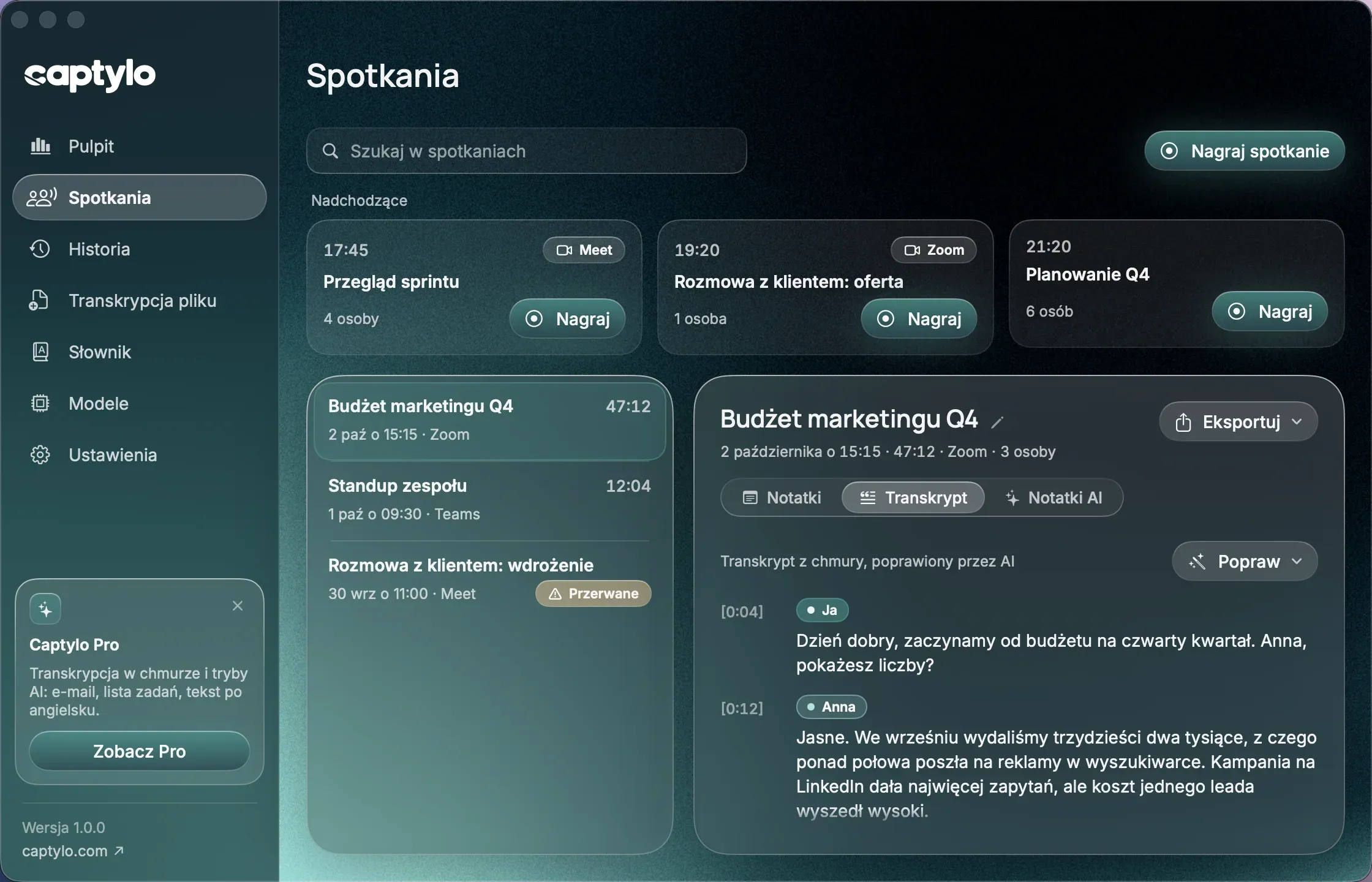
Your AI assistant knows your meetings
Captylo has a local MCP server. Connect it to the assistant you use (for example Claude Desktop or Cursor) and it can search and read the meetings on your Mac. Captylo sends nothing by itself: it answers only the assistant that started it.
- Read-only: the assistant cannot change or delete a meeting
- Off by default; you turn it on in Settings > Meetings
- Part of the Free plan
Connect your assistant in a minute
You copy the configuration from the app with one button. It looks like this:
- 1
In Captylo open Settings > Meetings and turn on “Access for AI assistants (MCP)”.
- 2
Click “Copy configuration”.
- 3
Paste it into the MCP server configuration of your assistant (in Claude Desktop: Settings > Developer > Edit Config) and restart it.
- 4
Ask about a meeting. The assistant starts Captylo in read-only mode by itself; the app does not need to be running.
{
  "mcpServers": {
    "captylo": {
      "command": "/Applications/Captylo.app/Contents/MacOS/Captylo",
      "args": [
        "--mcp"
      ]
    }
  }
}
The path depends on where Captylo is installed. The button in the app fills in the right one.
Your meetings stay on your Mac
Recording, the live transcript, search and the MCP server all run locally. Something goes to the cloud only when you use a Pro feature.
- Cloud transcription gets both tracks of the recording; AI gets the transcript with the title and the participants
- “Ask all” sends only the matching excerpts, never whole transcripts
- Audio files go right away, after 7 or 30 days, or never; transcripts and notes stay
- Meeting titles and participant names never go into the app logs
Settings > Meetings
Free or Pro?
Recording and the transcript on your Mac are free, with no limit. Pro adds the cloud and AI.
| Meetings | Free | Pro |
|---|---|---|
| Recording without a bot (mic and computer audio) | Yes | Yes |
| Transcript | Live, on your Mac | Live, then a more accurate one from the cloud |
| Calendar and reminders | Yes | Yes |
| Search across all meetings | Yes | Yes |
| Export to Markdown and JSON | Yes | Yes |
| MCP server for an AI assistant | Yes | Yes |
| AI fixes of the transcript | No | Yes |
| AI notes with decisions and tasks | No | Yes |
| Speaker labels | No | Yes, on macOS 15 or newer |
| Ask about one meeting or all of them | No | Yes |
Pro costs $84 a year or $9 a month. It includes 20 hours of cloud transcription and 3 million AI tokens a month; for a meeting only the time someone speaks counts. See pricing
Questions about meetings
What to know before you record your first call.
Will the others see that I am recording?
No. Captylo does not join the call, so it never shows up in the participant list. That is why every recording starts with a reminder to tell the others, with a ready line to paste into the chat. In many countries recording a call needs the consent of the people in it: ask before you start.
Which apps does it work with?
Any app you can hear on your Mac: Google Meet, Zoom, Microsoft Teams, Slack, FaceTime, Webex, Discord and more, in the browser too. Captylo records the microphone and the computer’s audio, so it needs no integration with any of them.
How accurate is the transcript?
The live transcript comes from the speech model on your Mac: it works offline and for free, but it is not as accurate as cloud transcription. In Pro both tracks go to the cloud after the call and you get a more accurate transcript, which AI can then fix with your dictionary and the participants’ names.
Do I need headphones?
No, but headphones give the cleanest transcript. Without them the others’ voices come back through your microphone, and Captylo removes those repeats from your track in the transcript.
What if I forget to start recording?
Captylo can notice that a call has started and ask whether to record it. With your calendar connected it also reminds you before a meeting. You start recording with one click or the ⌃⌥⌘M shortcut. It never records without you saying so.
Do speaker labels work on every Mac?
Speaker labels (Speaker 1, Speaker 2 and so on, which you rename to real names) are part of Pro and need macOS 15 or newer. On macOS 14 the other side has one label: “Others”. Your own track is always labelled “Me”.
Where are my recordings and transcripts?
On your Mac. Audio files go right away, after 7 or 30 days, or never; transcripts and notes stay. Something goes to the cloud only when you use a Pro feature, and only what that feature needs.